
AutoPan
AutoPan automatically pans the viewport when you drag elements (nodes, connections, or annotations) near the edges of the canvas. This enables seamless dragging across large graphs without manually panning.
AutoPan in Action
When dragging a node toward the viewport edge, the canvas automatically scrolls to reveal more space. Orange overlay zones show where autopan activates. Speed increases as the pointer gets closer to the edge.
How It Works
AutoPan defines edge zones around the viewport perimeter. When a drag operation enters these zones, the canvas pans in that direction:
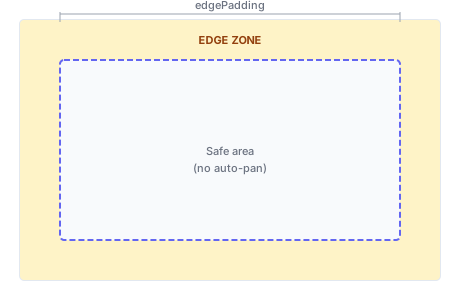
- Edge zones (yellow): Dragging here triggers viewport panning
- Safe area (center): Normal drag behavior, no panning
- Pan direction: Toward the nearest edge
Basic Usage
AutoPan is enabled via the AutoPanExtension in your controller's config:
import 'package:flutter/material.dart';
import 'package:vyuh_node_flow/vyuh_node_flow.dart';

// AutoPan is enabled by default with normal settings
final controller = NodeFlowController<MyData, dynamic>(
  config: NodeFlowConfig(
    extensions: [
      AutoPanExtension(), // Enabled with default settings
      // ... other extensions
    ],
  ),
);
Configuration
Configure autopan behavior via constructor parameters:
AutoPanExtension(
  enabled: true,                              // Enable/disable autopan
  edgePadding: EdgeInsets.all(50.0),          // Zone width from each edge
  panAmount: 10.0,                            // Pan distance per tick (graph units)
  panInterval: Duration(milliseconds: 16),    // Time between pan ticks (~60fps)
  useProximityScaling: false,                 // Speed varies with edge proximity
  speedCurve: null,                           // Easing curve for proximity scaling
)
Properties
| Property | Type | Default | Description |
|---|---|---|---|
enabled | bool | true | Whether autopan is active |
edgePadding | EdgeInsets | EdgeInsets.all(50.0) | Distance from viewport edges where autopan activates |
panAmount | double | 10.0 | Base pan amount per tick in graph units |
panInterval | Duration | 16ms | Time between pan ticks (~60fps) |
useProximityScaling | bool | false | Scale speed based on proximity to edge |
speedCurve | Curve? | null | Easing curve for proximity scaling |
Preset Configurations
AutoPanExtension provides three preset methods for common use cases:
// Balanced settings for most use cases
controller.autoPan?.useNormal();

// Applies:
//   edgePadding: EdgeInsets.all(50.0)
//   panAmount: 10.0
//   panInterval: Duration(milliseconds: 16)
// useProximityScaling: false// Faster panning for large canvases
controller.autoPan?.useFast();
// Applies:
// edgePadding: EdgeInsets.all(60.0)
// panAmount: 20.0
// panInterval: Duration(milliseconds: 12)
// useProximityScaling: false// Slower, more controlled panning for precision work
controller.autoPan?.usePrecise();
// Applies:
// edgePadding: EdgeInsets.all(30.0)
// panAmount: 5.0
// panInterval: Duration(milliseconds: 20)
// useProximityScaling: falseEffective Pan Speed
The effective pan speed depends on both panAmount and panInterval:
| Preset | Pan Amount | Interval | Ticks/sec | Speed (units/sec) |
|---|---|---|---|---|
| Normal | 10.0 | 16ms | ~62.5 | ~625 |
| Fast | 20.0 | 12ms | ~83.3 | ~1667 |
| Precise | 5.0 | 20ms | 50 | 250 |
Asymmetric Edge Zones
Specify different padding for each edge to accommodate UI elements:
AutoPanExtension(
  edgePadding: EdgeInsets.only(
    left: 50.0,    // Standard left edge
    right: 50.0,   // Standard right edge
    top: 30.0,     // Narrow top (toolbar present)
    bottom: 80.0,  // Wide bottom (avoid bottom bar)
  ),
)
This is useful when:
- A toolbar overlaps the top edge
- A properties panel is docked to one side
- A minimap occupies a corner
Proximity Scaling
Enable proximity scaling to gradually increase pan speed as the pointer approaches the viewport edge:
AutoPanExtension(
  edgePadding: EdgeInsets.all(50.0),
  panAmount: 15.0,
  useProximityScaling: true,
  speedCurve: Curves.easeIn,
)
Speed Multiplier Range
With proximity scaling enabled:
- At zone boundary (inner edge): 0.3x base speed
- At viewport edge (outer edge): 1.5x base speed
For panAmount: 10.0:
- Zone boundary: 3.0 units/tick
- Viewport edge: 15.0 units/tick
Available Speed Curves
| Curve | Behavior | Best For |
|---|---|---|
null (linear) | Constant speed increase | Predictable behavior |
Curves.easeIn | Slow start, fast finish | Precision near zone boundary |
Curves.easeOut | Fast start, slow finish | Quick initial response |
Curves.easeInOut | Slow-fast-slow | Balanced feel |
// Precision mode with easeIn curve
AutoPanExtension(
  useProximityScaling: true,
  speedCurve: Curves.easeIn,  // Slow near boundary, fast at edge
)
Controlling AutoPan at Runtime
Access the extension via the controller to modify settings:
// Enable/disable
controller.autoPan?.enable();
controller.autoPan?.disable();
controller.autoPan?.toggle();

// Switch presets
controller.autoPan?.useNormal();
controller.autoPan?.useFast();
controller.autoPan?.usePrecise();

// Update individual properties
controller.autoPan?.setEdgePadding(EdgeInsets.all(60.0));
controller.autoPan?.setPanAmount(15.0);
controller.autoPan?.setPanInterval(Duration(milliseconds: 20));
controller.autoPan?.setUseProximityScaling(true);
controller.autoPan?.setSpeedCurve(Curves.easeIn);

// Check state
if (controller.autoPan?.isEnabled ?? false) {
  print('AutoPan is active');
  print('Edge padding: ${controller.autoPan?.edgePadding}');
  print('Pan amount: ${controller.autoPan?.panAmount}');
}
Debug Visualization
Enable the debug overlay to visualize autopan edge zones:
// Via DebugExtension
controller.debug?.setMode(DebugMode.autoPanZone);

// Or in config
NodeFlowConfig(
  extensions: [
    AutoPanExtension(),
    DebugExtension(mode: DebugMode.autoPanZone),
  ],
)
The overlay shows:
- Orange zones: Areas where autopan activates
- Green dashed rectangle: Safe area boundary
- Zone width: Matches
edgePaddingvalues
Reactive Updates
AutoPan settings are MobX observables and update reactively:
import 'package:flutter_mobx/flutter_mobx.dart';

class AutoPanControls extends StatelessWidget {
  final NodeFlowController controller;

  @override
  Widget build(BuildContext context) {
    return Observer(
      builder: (_) {
        final autoPan = controller.autoPan;
        if (autoPan == null) return const SizedBox.shrink();

        return Column(
          children: [
            SwitchListTile(
              title: const Text('AutoPan Enabled'),
              value: autoPan.isEnabled,
              onChanged: (value) {
                if (value) {
                  autoPan.enable();
                } else {
                  autoPan.disable();
                }
              },
            ),
            ListTile(
              title: const Text('Pan Speed'),
              subtitle: Slider(
                value: autoPan.panAmount,
                min: 5.0,
                max: 30.0,
                onChanged: (value) => autoPan.setPanAmount(value),
              ),
              trailing: Text('${autoPan.panAmount.toStringAsFixed(0)}'),
            ),
          ],
        );
      },
    );
  }
}
Common Patterns
Preset Selector
Build a UI to switch between presets:
class AutoPanPresetSelector extends StatelessWidget {
  final NodeFlowController controller;

  @override
  Widget build(BuildContext context) {
    return SegmentedButton<String>(
      segments: const [
        ButtonSegment(value: 'normal', label: Text('Normal')),
        ButtonSegment(value: 'fast', label: Text('Fast')),
        ButtonSegment(value: 'precise', label: Text('Precise')),
        ButtonSegment(value: 'off', label: Text('Off')),
      ],
      selected: {'normal'}, // Track current selection
      onSelectionChanged: (selection) {
        switch (selection.first) {
          case 'normal':
            controller.autoPan?.useNormal();
            controller.autoPan?.enable();
            break;
          case 'fast':
            controller.autoPan?.useFast();
            controller.autoPan?.enable();
            break;
          case 'precise':
            controller.autoPan?.usePrecise();
            controller.autoPan?.enable();
            break;
          case 'off':
            controller.autoPan?.disable();
            break;
        }
      },
    );
  }
}
Adaptive Edge Padding
Adjust edge padding based on screen size:
class AdaptiveAutoPan extends StatelessWidget {
  final NodeFlowController controller;

  @override
  Widget build(BuildContext context) {
    return LayoutBuilder(
      builder: (context, constraints) {
        // Larger edge zones for bigger screens
        final padding = constraints.maxWidth > 1200 ? 80.0 : 50.0;

        WidgetsBinding.instance.addPostFrameCallback((_) {
          controller.autoPan?.setEdgePadding(EdgeInsets.all(padding));
        });

        return NodeFlowEditor<MyData, dynamic>(
          controller: controller,
          theme: NodeFlowTheme.light,
          nodeBuilder: (context, node) => MyNodeWidget(node: node),
        );
      },
    );
  }
}
Disable During Specific Operations
Temporarily disable autopan during certain operations:
void startPrecisionAlignment() {
  // Disable autopan for precise positioning
  controller.autoPan?.disable();
}

void endPrecisionAlignment() {
  // Re-enable autopan
  controller.autoPan?.enable();
}
Performance Considerations
- AutoPan uses a timer that fires at
panIntervalrate while active - The timer only runs when dragging in an edge zone
- Proximity scaling adds minimal overhead (one calculation per tick)
- Edge zone detection uses simple coordinate comparisons
For optimal performance:
- Use
panIntervalof 16ms or higher (60fps or less) - Avoid very small
panAmountvalues (causes slow, choppy movement) - Consider disabling for users who prefer manual panning
Best Practices
- Keep default settings: The normal preset works well for most use cases
- Use fast for large graphs: When users navigate large canvases frequently
- Use precise for detail work: When positioning accuracy matters
- Show debug overlay during development: Helps tune edge padding values
- Consider UI layout: Adjust
edgePaddingto avoid overlap with toolbars - Provide user control: Let users choose their preferred speed or disable it
API Reference
AutoPanExtension Constructor
| Parameter | Type | Default | Description |
|---|---|---|---|
enabled | bool | true | Initial enabled state |
edgePadding | EdgeInsets | EdgeInsets.all(50.0) | Edge zone widths |
panAmount | double | 10.0 | Pan distance per tick |
panInterval | Duration | Duration(milliseconds: 16) | Time between ticks |
useProximityScaling | bool | false | Enable speed scaling |
speedCurve | Curve? | null | Curve for speed scaling |
Properties (via controller.autoPan)
| Property | Type | Description |
|---|---|---|
isEnabled | bool | Whether autopan is currently active |
edgePadding | EdgeInsets | Current edge zone configuration |
panAmount | double | Current pan amount per tick |
panInterval | Duration | Current interval between ticks |
useProximityScaling | bool | Whether proximity scaling is enabled |
speedCurve | Curve? | Current speed curve |
Methods
| Method | Description |
|---|---|
enable() | Enable autopan |
disable() | Disable autopan |
toggle() | Toggle enabled state |
useNormal() | Apply normal preset |
useFast() | Apply fast preset |
usePrecise() | Apply precise preset |
setEdgePadding(EdgeInsets) | Update edge zones |
setPanAmount(double) | Update pan amount |
setPanInterval(Duration) | Update tick interval |
setUseProximityScaling(bool) | Enable/disable proximity scaling |
setSpeedCurve(Curve?) | Set speed curve |
calculatePanAmount(proximity, edgePaddingValue) | Calculate scaled pan amount |
See Also
- Configuration - General extension configuration
- Minimap - Another navigation aid
- Level of Detail - Performance optimization for large graphs