
Debug Extension
The Debug extension provides visual overlays for understanding the editor's internal state. Use it during development to visualize the spatial index grid, autopan zones, and hit testing areas.
Debug Visualization
When enabled, debug mode shows color-coded overlays:
- Spatial index grid: Shows how the canvas is partitioned for efficient hit testing
- Autopan zones: Orange areas at viewport edges where auto-panning activates
Quick Start
Debug is included by default but disabled. Enable it via the extension or controller:
// Enable in config
NodeFlowConfig(
  extensions: [
    DebugExtension(mode: DebugMode.all),
    // ... other extensions
  ],
)

// Or toggle at runtime
controller.debug?.toggle();
controller.debug?.setMode(DebugMode.spatialIndex);
Debug Modes
The extension supports four modes:
| Mode | Description | Use Case |
|---|---|---|
DebugMode.none | No overlays (default) | Production |
DebugMode.all | All debug visualizations | General debugging |
DebugMode.spatialIndex | Spatial partitioning grid only | Hit testing issues |
DebugMode.autoPanZone | Autopan edge zones only | Autopan tuning |
Mode Properties
Each mode has convenience properties:
final mode = controller.debug?.mode;

// Check what's visible
mode.isEnabled;        // true for any non-none mode
mode.showSpatialIndex; // true for all or spatialIndex
mode.showAutoPanZone;  // true for all or autoPanZone
Spatial Index Visualization
The spatial index grid shows how the canvas is partitioned for efficient spatial queries:
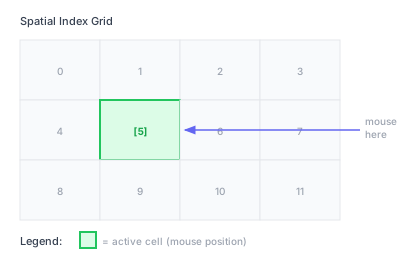
The visualization shows:
- Grid cell boundaries: How the canvas is divided
- Object counts: Number of nodes/connections per cell
- Active cell: Highlighted where the mouse is
- Color coding: Different colors for connections (red), nodes (blue), ports (green)
When to Use
Enable spatial index visualization when:
- Hit testing seems to miss objects
- Performance issues with large graphs
- Understanding how spatial partitioning works
- Debugging custom hit test behavior
AutoPan Zone Visualization
Shows the edge zones where auto-panning activates during drag operations:
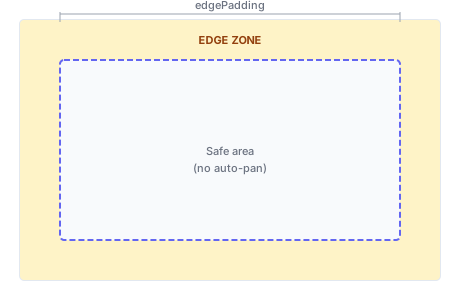
The visualization shows:
- Yellow zones: Areas where dragging triggers auto-panning
- Dashed rectangle: Safe area boundary (no auto-pan)
- Zone widths: Match
edgePaddingvalues from AutoPanExtension
When to Use
Enable autopan zone visualization when:
- Tuning
edgePaddingvalues for your UI layout - Verifying asymmetric edge padding works correctly
- Testing autopan behavior with overlapping toolbars
Debug Theme
Customize debug colors with DebugTheme:
DebugExtension(
  mode: DebugMode.all,
  theme: DebugTheme(
    color: Color(0x20CC4444),              // Inactive cell fill
    borderColor: Color(0xFF994444),        // Inactive cell border
    activeColor: Color(0x2000AA00),        // Active cell fill
    activeBorderColor: Color(0xFF338833),  // Active cell border
    labelColor: Color(0xCCDDDDDD),         // Label text
    labelBackgroundColor: Color(0xDD1A1A1A), // Label background
    indicatorColor: Color(0xFF00DD00),     // Active indicators
    segmentColors: [
      Color(0xFFCC4444), // connections (red)
      Color(0xFF4488FF), // nodes (blue)
      Color(0xFF44CC44), // ports (green)
    ],
  ),
)
Built-in Themes
// Light theme (default) - works on light backgrounds
DebugExtension(theme: DebugTheme.light)

// Dark theme - works on dark backgrounds
DebugExtension(theme: DebugTheme.dark)
Theme Properties
| Property | Description |
|---|---|
color | Fill color for inactive grid cells |
borderColor | Border color for inactive cells |
activeColor | Fill color for active (hovered) cells |
activeBorderColor | Border color for active cells |
labelColor | Text color for cell labels |
labelBackgroundColor | Background for cell labels |
indicatorColor | Color for active indicators |
segmentColors | Colors for spatial segments by Z-order |
Runtime Control
Toggle debug modes at runtime:
// Toggle between none and all
controller.debug?.toggle();

// Set specific mode
controller.debug?.setMode(DebugMode.spatialIndex);

// Cycle through all modes
controller.debug?.cycle();  // none → all → spatialIndex → autoPanZone → none

// Convenience methods
controller.debug?.showAll();
controller.debug?.hide();
controller.debug?.showOnlySpatialIndex();
controller.debug?.showOnlyAutoPanZone();
Check Current State
final debug = controller.debug;
if (debug != null) {
  print('Mode: ${debug.mode}');
  print('Enabled: ${debug.isEnabled}');
  print('Showing spatial: ${debug.showSpatialIndex}');
  print('Showing autopan: ${debug.showAutoPanZone}');
}
Debug Mode Selector
Build a UI to switch between debug modes:
import 'package:flutter_mobx/flutter_mobx.dart';

class DebugModeSelector extends StatelessWidget {
  final NodeFlowController controller;

  const DebugModeSelector({super.key, required this.controller});

  @override
  Widget build(BuildContext context) {
    return Observer(
      builder: (_) {
        final debug = controller.debug;
        if (debug == null) return const SizedBox.shrink();

        return SegmentedButton<DebugMode>(
          segments: const [
            ButtonSegment(
              value: DebugMode.none,
              label: Text('Off'),
              icon: Icon(Icons.visibility_off),
            ),
            ButtonSegment(
              value: DebugMode.all,
              label: Text('All'),
              icon: Icon(Icons.bug_report),
            ),
            ButtonSegment(
              value: DebugMode.spatialIndex,
              label: Text('Grid'),
              icon: Icon(Icons.grid_on),
            ),
            ButtonSegment(
              value: DebugMode.autoPanZone,
              label: Text('Pan'),
              icon: Icon(Icons.open_with),
            ),
          ],
          selected: {debug.mode},
          onSelectionChanged: (selection) {
            debug.setMode(selection.first);
          },
        );
      },
    );
  }
}
Keyboard Shortcut
Add a debug toggle shortcut:
shortcuts: {
  LogicalKeySet(LogicalKeyboardKey.keyD): ToggleDebugIntent(),
},
actions: {
  ToggleDebugIntent: CallbackAction<ToggleDebugIntent>(
    onInvoke: (intent) {
      controller.debug?.cycle();
      return null;
    },
  ),
}
Integration with Other Extensions
Debug mode works alongside other extensions:
NodeFlowConfig(
  extensions: [
    // Autopan zones are shown when DebugMode.autoPanZone or .all is active
    AutoPanExtension(
      edgePadding: EdgeInsets.all(60.0),
    ),

    // Debug visualizes autopan zones
    DebugExtension(mode: DebugMode.all),

    // Other extensions
    MinimapExtension(),
    LodExtension(enabled: true),
  ],
)
Performance Considerations
Debug overlays add rendering overhead:
- Spatial index grid: Draws cells and labels for entire viewport
- AutoPan zones: Draws edge rectangles (minimal overhead)
For large graphs, consider:
- Using
DebugMode.autoPanZoneinstead ofDebugMode.allwhen tuning autopan - Disabling debug mode during performance testing
- Never shipping production code with debug enabled
Complete Example
class DebugToolbar extends StatelessWidget {
  final NodeFlowController controller;

  const DebugToolbar({super.key, required this.controller});

  @override
  Widget build(BuildContext context) {
    return Observer(
      builder: (_) {
        final debug = controller.debug;
        if (debug == null) return const SizedBox.shrink();

        return Container(
          padding: const EdgeInsets.all(8),
          decoration: BoxDecoration(
            color: Theme.of(context).colorScheme.surfaceVariant,
            borderRadius: BorderRadius.circular(8),
          ),
          child: Row(
            mainAxisSize: MainAxisSize.min,
            children: [
              const Icon(Icons.bug_report, size: 16),
              const SizedBox(width: 8),
              const Text('Debug: '),

              // Mode dropdown
              DropdownButton<DebugMode>(
                value: debug.mode,
                underline: const SizedBox.shrink(),
                items: DebugMode.values.map((mode) {
                  return DropdownMenuItem(
                    value: mode,
                    child: Text(mode.name),
                  );
                }).toList(),
                onChanged: (mode) {
                  if (mode != null) debug.setMode(mode);
                },
              ),

              const SizedBox(width: 8),

              // Quick toggle
              IconButton(
                icon: Icon(
                  debug.isEnabled ? Icons.visibility : Icons.visibility_off,
                ),
                onPressed: debug.toggle,
                tooltip: debug.isEnabled ? 'Disable debug' : 'Enable debug',
              ),

              // Cycle button
              IconButton(
                icon: const Icon(Icons.rotate_right),
                onPressed: debug.cycle,
                tooltip: 'Cycle debug modes',
              ),
            ],
          ),
        );
      },
    );
  }
}
API Reference
DebugExtension Constructor
| Parameter | Type | Default | Description |
|---|---|---|---|
mode | DebugMode | DebugMode.none | Initial debug mode |
theme | DebugTheme | DebugTheme.light | Visual theme for overlays |
Properties (via controller.debug)
| Property | Type | Description |
|---|---|---|
mode | DebugMode | Current debug mode |
isEnabled | bool | Whether any debug visualization is active |
showSpatialIndex | bool | Whether spatial index grid is visible |
showAutoPanZone | bool | Whether autopan zones are visible |
theme | DebugTheme | Current debug theme |
Methods
| Method | Description |
|---|---|
setMode(DebugMode) | Set the debug mode |
toggle() | Toggle between none and all |
cycle() | Cycle through all modes |
showAll() | Set mode to all |
hide() | Set mode to none |
showOnlySpatialIndex() | Set mode to spatialIndex |
showOnlyAutoPanZone() | Set mode to autoPanZone |
DebugMode Enum
| Value | isEnabled | showSpatialIndex | showAutoPanZone |
|---|---|---|---|
none | false | false | false |
all | true | true | true |
spatialIndex | true | true | false |
autoPanZone | true | false | true |
See Also
- Extensions - Extension system overview
- AutoPan - Configure autopan edge zones
- Configuration - Editor configuration options